
Ready for a stress-free approach to PDF accessibility?
Simplify ADA compliance by automatically converting all current and future PDFs into screen reader-friendly, WCAG 2.1 AA-aligned HTML transcripts.

Let Your Users Search, Translate,
Ask Questions & Get Live Assistance
Be ADA compliant while ensuring all users get the great experience they deserve.
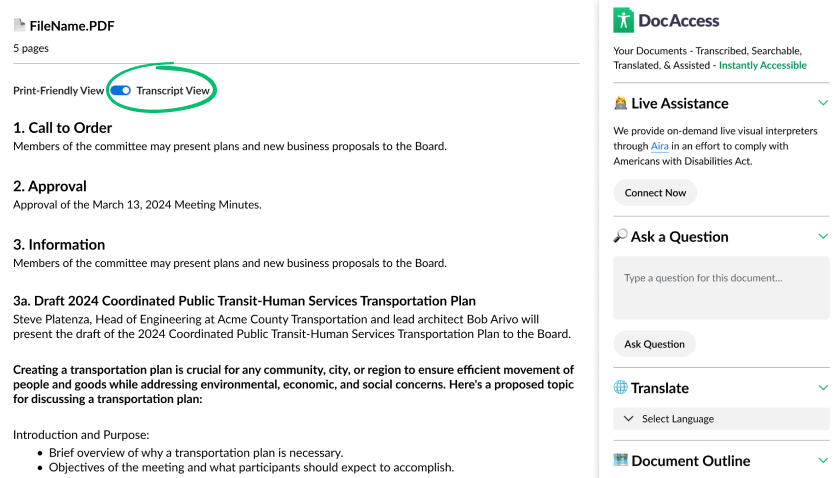
Convert to an Accessible Transcript
You can view your document in a print friendly version or turn on the accessible transcript that ensures equal access for people with disabilities, especially those who are blind, low vision, or have motor impairments and rely on assistive technology.
What this solves:
Translate to 250 Languages
Allow your site visitors to access your documents in their own language. Includes more than 250 languages, powered by Google Translate.
DocAccess automatically provides statistics on the languages spoken in your service area, and will prioritize those languages in the available options.
Connect to a Live Visual Interpreter
We are both honored and humbled by the challenge of making documents accessible to users with all types of disabilities. However, even with advanced technology, there is still a risk of an access barrier. Because of this, and because of our committment to providing reasonable accomodation as required by the Americans with Disabilities Act, we offer 24/7 live interpreters via Aira, the leading visual interpreting service. We cover 30 minutes of support, so your users can get the help they need for free. Any accessibility issues are reported back for improvement, providing a valuable feedback loop.
🔎Ask Your Document a Question
With DocAccess, users can ask questions about the documents, saving valuable time and getting the information they need. What was the total budget for Item A? How much more was spent this year vs. last year?
Ask and answered in their own language
Combined with the ability to translate your documents, users can ask questions and get answers in their own language with DocAccess, providing a powerful new way for anyone to learn about the information in your documents.
Navigate with a Document Outline
An essential part of meeting WCAG 2.1 AA guidelines is providing users with a navigational hierachy of your documents. In addition to automatically detecting and providing semantic headings throughout your documents, DocAccess provides a document outline that allows users to navigate your documents with ease. Sections automatically highlight and smooth-scroll into focus.
Make PDF content mobile-friendly
DocAccess automatically detects and transcribes PDF content to responsive HTML, making content mobile-friendly and accessible to all users.
A Simpler Way to Make Your Documents Accessible
Step 1 Get your report and try your most challenging documents for free!
Experience the power of DocAccess on your own documents. Try it with your screen reader, share with others in your organization, and see how we handle even your most complex PDFs.
Step 2 Review your compliance plan with a DocAccess specialist.
We'll walk through your complete document inventory, test the functionality with you on your site, ensure all of your domains are covered, and provide a proposal tailored to your organization.
Step 3 Onboard and relax.
Our team guides you through onboarding and certifies your site. Your team generally has less than 5 minutes of work—just one line of code, already supported by dozens of platforms. Then sit back as all your current and future PDFs become accessible.Get Started
Designed in partnership with the community

"DocAccess is by far the best solution of its kind on the market today…the PDF problem has finally been solved."
—Carter Temm, NVDA Contributor and Blind Accessibility Advocate

"This is the first tool I've seen in a long time that can back up its accessibility talk with a real solution."
—Shawn Jordison, The Accessibility Guy, and PDF Accessibility Thought Leader
Protect yourself from costly accessibility lawsuits
Accessibility lawsuits in the U.S. have surged in recent years. The most common culprit being an inaccessible document or PDF. Protect yourself from risk and avoid the headache of creating accessible documents or paying for costly remediations.
Join Our Cause & Help Us Test
We need your help and feedback on our mission to make the world's documents more accessible. Join the beta program for free and help us improve this emerging technology so it can live up to its promise.
Frequently Asked Questions
How are PDF pages converted into accessible documents?
We utilize optical character recognition (OCR), advanced image processing, and proprietary AI-trained models to create fully accessible transcripts of PDF files. Complex pages undergo additional human review by accessibility specialists at no extra cost to ensure complete accuracy.
What accessibility standards does DocAccess follow?
DocAccess fully adheres to WCAG 2.1 AA guidelines, ensuring compliance with Section 508 of the Rehabilitation Act, the Americans with Disabilities Act (ADA), the latest DOJ ruling 28 CFR Part 35, and the EU's EN 301 549 accessibility requirements. We also comply with state-specific regulations across all 50 states, including California's AB 434 and Unruh Act, as well as Colorado's HB 21-1110.
Do I still need to remediate my PDFs?
Since DocAccess creates a fully compliant, accessible HTML transcript of your PDFs, this qualifies as an "alternative format" under ADA guidelines. Therefore, your original PDFs generally do not require separate remediation. We have found that users with disabilities typically prefer this interactive format on the website itself, enabling quick navigation and immediate responses to their queries. Legal experts have also supported this position
HTML is not just acceptable, but often preferred. The official Section508.gov guidance on PDFs states that PDFs are often not the most accessible option and that federal policy requires agencies to prioritize HTML and use PDFs only when necessary. section508.gov
How do you ensure accessibility for all users with disabilities?
We are both honored and humbled by the challenge of making documents accessible to users with all types of disabilities.
Live Assistance as a Foundation and Fallback
Understanding that every interpretive technology can fail, we provide 24/7 live interpreting via Aira, the leading visual interpreting service. Calls are free, recorded, and monitored for continuous improvement.
Expert Review
We regularly review high-complexity pages for accuracy. We partner with The Accessibility Guy to ensure that the transcriptions are accurate, complete, compliant with the WCAG 2.1 AA guidelines, and reasonably capture any structural nuances of the original PDF.
Comprehensive Accessibility Testing
In addition to testing in-house, we work with an accessibility partner, LevelAccess to conduct extensive live user testing covering a wide range of disabilities and assistive technologies, ensuring thorough compliance.
Tailored Accessibility by Disability Type
- Visual Disabilities: Our documents follow strict WCAG 2.1 AA standards, optimizing semantic structure for screen readers, alternative text for images, and concise summaries for complex information.
- Auditory Disabilities: Typically, no additional accommodations are necessary for standard documents. However, in an edge case where your document links to multimedia content without captions, we provide ASL interpreting through Aira.
- Cognitive Disabilities: DocAccess simplifies complex documents through intuitive navigation and a user-friendly "Ask a Question" feature that accommodates spelling errors and multiple languages.
- Motor Disabilities: DocAccess is fully operable via keyboard-only navigation and is tested against rigorous standards to ensure compatibility with a wide range of assistive technologies.
How do included pages work?
DocAccess counts pages, not documents, and only transcribed pages count.
- True duplicates count once—the same file linked in multiple places is not double-counted.
- If a document is replaced and retranscribed, the pages in each version count because a new accessible transcript is created each time. For example, a 10-page document replaced and retranscribed 10 times uses 100 pages.
- Once a page is transcribed, it continues to count even if the file is later removed or disabled because the accessible transcript has already been created. Disabling a document before it is transcribed prevents its pages from counting.
- Deactivating a site works the same way: pages already transcribed continue to count, but no new pages are added while the site is deactivated. Contact support if you would like those pages reviewed for a possible refund.
- Your page allowance automatically grows by 5% each month.
- You have unlimited views of all transcribed pages.
You can export your document list to CSV from the Control Center. If you approach your limit, you will receive a notification with available options.
Did the DOJ extend the Title II web accessibility compliance deadline?
Yes. On April 20, 2026, the Department of Justice published an Interim Final Rule extending the Title II web and mobile accessibility compliance dates by one year:
- Public entities with a total population of 50,000 or more: extended from April 24, 2026 to April 26, 2027.
- Public entities with a total population of less than 50,000, and any special district government: extended from April 26, 2027 to April 26, 2028.
Importantly, the underlying rule did not change. WCAG 2.1 Level AA is still the technical standard, and the substantive accessibility obligations are unchanged — only DOJ's enforcement timeline moved. Title II also includes a private right of action, so individuals with disabilities can still file ADA claims in federal court regardless of the new DOJ deadline. See the Interim Final Rule (PDF) and our full write-up for context.
How do included pages work?
DocAccess counts pages, not documents, and only transcribed pages count.
- True duplicates count once—the same file linked in multiple places is not double-counted.
- If a document is replaced and retranscribed, the pages in each version count because a new accessible transcript is created each time. For example, a 10-page document replaced and retranscribed 10 times uses 100 pages.
- Once a page is transcribed, it continues to count even if the file is later removed or disabled because the accessible transcript has already been created. Disabling a document before it is transcribed prevents its pages from counting.
- Deactivating a site works the same way: pages already transcribed continue to count, but no new pages are added while the site is deactivated. Contact support if you would like those pages reviewed for a possible refund.
- Your page allowance automatically grows by 5% each month.
- You have unlimited views of all transcribed pages.
You can export your document list to CSV from the Control Center. If you approach your limit, you will receive a notification with available options.
Can I exclude archived documents from DocAccess?
Yes. With on-demand transcription enabled, DocAccess will defer transcription of archived or low-traffic documents until they're actually needed—so page credits are only used when a document is transcribed. You can also disable specific documents or URL paths (e.g., /archive/*) to prevent them from being transcribed. Note that pages already transcribed still count against your allowance, since the transcript has already been created.
What payment methods do you accept?
We offer invoicing and accept credit cards, ACH transfers, wire transfers, and paper checks. Payment terms are specified in your agreement.
How does live assistance work?
We offer complimentary live human assistance via Aira to help your users with disabilities overcome any document-related challenges when using DocAccess, capped at 30 minutes of free covered interpretation time per user to prevent abuse.
What does installing DocAccess entail? Will it work on my website?
Installing DocAccess is a simple process, similar to installing Google Analytics. It typically takes less than 5 minutes to install and activate. It consists of a small JavaScript snippet that you can add to the footer or header of your website. This will allow DocAccess to work automatically on all of your PDF links. Instructions are available in your DocAccess dashboard. If you are not able to install the script for some reason, DocAccess will also provide you with an accessible document list that you can link to.
How does DocAccess count the number of PDF pages on my site?
DocAccess counts the number of PDF pages on your website by crawling your site and counting the number of total number of PDF files. We use your sitemap.xml if one is available to ensure we are counting all of your publicly-accessible pages. After we have a complete listing of your PDF pages, we will analyze each file for the total number of pages, and provide you with a total page count.
What if I link out to PDFs on other websites? Will DocAccess still count and transcribe them?
Yes! One of the unique (and most requested) features of DocAccess is that it will count, track, and transcribe PDFs on other sites that you link directly to, ensuring an accessible experience even on documents that you need to reference but cannot control. Any document linked on your website will be automatically made accessible by default, unless you explicitly disable the document in the dashboard.
Example: if site1.org/important-documents has a link to to site2.org/external-document.pdf, that external-document.pdf will be listed in site1.org's dashboard and will be automatically transcribed for anyone on site1.org who clicks on it.
What if I have really complicated PDFs with maps, diagrams, budgets, and/or handwriting?
Bring it on! DocAccess can interpret almost any type of content. There is no extra charge for complex PDFs. We welcome your most complicated, ugly, seemingly unfixable documents. We see each one as a challenge to make the internet a more accessible place.
Does DocAccess use existing alt text that I've already added to my PDFs?
Yes and no. DocAccess will use your exact alt text on the print-friendly version of the document. However, DocAccess will add more comprehensive alt text to the transcript view to conform to WCAG 2.1 AA guidelines using a best-practices formula to best convey visual meaning.
I have multiple websites. Can I use DocAccess on all of them?
Yes. You can install DocAccess on as many websites as you want. Simply add more sites under the "Sites" tab in your DocAccess dashboard, and they will total up in your page count and can be managed from the same dashboard. You do not need to purchase a separate plan for each site.
If you retire a site, open its settings, switch to the Advanced tab, and check Deactivate this domain. Deactivated sites are hidden from your dashboard, excluded from reports and inventory, stop being spidered, and the DocAccess viewer no longer loads on them. Reactivating is one click. Deactivating a single site does not affect your account login or any other site.
What if I link to the same document from multiple places on my site(s)?
DocAccess will not charge you twice for the same PDF link. We track each document's fingerprint (specifically, the MD5 hash of the document) to ensure that we only count each document once.
How do I retire or remove a site from DocAccess?
If a domain still belongs to your organization, deactivate it rather than deleting it. Anything that belongs to your organization should remain associated with your DocAccess account so its documents, links, transcripts, and history do not become orphaned.
To deactivate a site:
1. Open the site’s settings.
2. Switch to the Advanced tab.
3. Select Deactivate this domain.
4. Save your changes.
A deactivated domain:
- Remains associated with your account
- Preserves its documents, links, transcripts, and history
- Stops being scanned
- No longer loads the DocAccess viewer
- Is hidden from the active sites list
- Is excluded from current reports and inventory
- Can be reactivated later
Use Show deactivated sites at the bottom of the Sites list to find and reactivate it. Deactivating one site does not affect your other sites, users, or subscription.
Pages already transcribed for the site continue to count toward your page allowance because the accessible transcripts have already been created. Contact support if you would like those pages reviewed for a possible refund.
## When is permanent removal appropriate?
Permanent removal may be appropriate only when the domain:
- Was added by mistake
- Does not belong to your organization
- Must be moved to the correct account
Contact support before permanently removing a domain. This is a destructive action, and support can reorganize the domain while preserving the correct document associations and avoiding orphaned records.
How do I retire or remove a site from DocAccess?
If a domain still belongs to your organization, deactivate it rather than deleting it. Anything that belongs to your organization should remain associated with your DocAccess account so its documents, links, transcripts, and history do not become orphaned.
To deactivate a site:
1. Open the site’s settings.
2. Switch to the Advanced tab.
3. Select Deactivate this domain.
4. Save your changes.
A deactivated domain:
- Remains associated with your account
- Preserves its documents, links, transcripts, and history
- Stops being scanned
- No longer loads the DocAccess viewer
- Is hidden from the active sites list
- Is excluded from current reports and inventory
- Can be reactivated later
Use Show deactivated sites at the bottom of the Sites list to find and reactivate it. Deactivating one site does not affect your other sites, users, or subscription.
Pages already transcribed for the site continue to count toward your page allowance because the accessible transcripts have already been created. Contact support if you would like those pages reviewed for a possible refund.
## When is permanent removal appropriate?
Permanent removal may be appropriate only when the domain:
- Was added by mistake
- Does not belong to your organization
- Must be moved to the correct account
Contact support before permanently removing a domain. This is a destructive action, and support can reorganize the domain while preserving the correct document associations and avoiding orphaned records.
Do we need to archive or delete old PDFs to stay compliant?
Absolutely not. True accessibility means making all information available to everyone, not hiding documents to reduce costs. DocAccess automatically handles every PDF on your site - old and new - without forcing you to restrict public information or make difficult decisions about what content is "worth" making accessible.
Do I need to update my accessibility statement to mention DocAccess?
You do not necessarily need to mention DocAccess by name in your accessibility statement, but we do recommend updating the statement to reflect the accessibility features now available on your website.
For example, your statement can mention that:
Accessible versions of PDF documents are available on the site
Visitors can access screen reader–friendly HTML transcripts
Translation options are available
Live assistance is available if a user needs additional help accessing document content
In most cases, it is better to describe the accessibility support available to the public rather than focusing on the product name itself.
How do I register a deal as a CivicPlus partner?
Open the Deal Registration form in CivicPlus PRM and enter the prospect's jurisdiction, primary contact, and estimated population. Registered deals are protected for 90 days. If a registration is contested, email your Partner Operations Manager.
Who should I contact with billing questions?
DocAccess billing is now managed by the CivicPlus Accounting team.
For assistance with invoices, payments, account balances, remittance information, or payment methods, please contact:
Email: accounting@civicplus.com
Phone: (888) 228-2233
Why can't I view my invoices in DocAccess?
DocAccess billing is now managed by the CivicPlus Accounting team. As part of this transition, invoices are temporarily unavailable within the DocAccess platform.
We're actively working to bring this feature back in a future update. If you need a copy of an invoice or have questions about your account, please contact the CivicPlus Accounting team at accounting@civicplus.com or (888) 228-2233.
What CivicClerk/AMMS documents does DocAccess currently support?
DocAccess currently supports top-level documents published through CivicClerk/AMMS. Broken-out components and attachments within those documents are not supported at this time, so they may not open in the DocAccess accessible viewer.
We are actively working to expand the integration to support these components and attachments in a future update. In the meantime, only the top-level document should be considered covered by the current CivicClerk/AMMS integration.
Why doesn’t DocAccess open documents while I’m signed into my website editor?
DocAccess may intentionally avoid opening its accessible document viewer while you are signed into your website’s content management system or editor. This prevents DocAccess from interfering with administrative and editing workflows.
To test the public visitor experience:
1. Sign out of your website editor, then reload the public page and select the document again; or
2. Open the page in a private/incognito browser window where you are not signed in.
If DocAccess still does not open while signed out, contact support and include the page URL and document link so the issue can be investigated.
Why isn’t my PDF opening in the DocAccess viewer?
Several common issues can prevent a PDF from opening in the DocAccess viewer.
Things you can check
1. Confirm DocAccess is installed
In the Control Center, check the Your Sites section. The installation status appears next to each website.
You can also visit your public website and inspect the page source for the DocBox script. Test while signed out of your content management system (CMS), since administrative views may use a different page template.
DocAccess automatically rechecks the installation status every 24 hours. If the script was recently added or removed, the displayed status may not update immediately.
2. Verify the script was added exactly as provided
Changes to the installation snippet—including altered formatting or curly “smart” quotation marks—can prevent browsers from loading it. Copy the current script directly from the domain’s Installations tab and add it without modification.
3. Make sure DocAccess is Active
On your Control Center, confirm that DocAccess is "Active" via the toggle at the top of the Your Sites Section.
4. Make sure the document is enabled
Find the PDF in the Control Center’s document list and confirm that it has not been disabled or excluded by an Include/Exclude path rule.
5. Test as a public visitor
If you are signed into your website’s CMS or editor, DocAccess may intentionally avoid opening the viewer so it does not interfere with editing. Sign out, or test the link in a private/incognito browser window.
6. Confirm the document is actually a PDF
The DocAccess viewer opens PDF documents. A link that leads to an HTML page, another file type, or a platform-specific preview page may not be recognized as a PDF—even if the page displays or downloads a document.
Other possible causes
Some causes are harder to diagnose without assistance:
- The PDF URL was pasted directly into the browser instead of being selected from a webpage where DocAccess is installed.
- The link is configured to open in a new tab or uses custom behavior that bypasses DocAccess.
- A browser PDF extension is overriding the normal link behavior.
- The link is being opened from a mobile app or embedded mobile browser that handles PDFs differently.
- The webpage or link uses custom scripts that prevent DocAccess from detecting the click.
- The PDFs are inside an iframe that requires the DocAccess helper script to be installed directly within it.
If the PDF still does not open, contact support and include:
- The webpage containing the PDF link
- The PDF URL
- Your browser and device
- Whether the issue also occurs in a private/incognito window
How should I manage agendas and other frequently updated documents?
For agendas, meeting packets, notices, and other time-sensitive PDFs that are regularly replaced at the same URL, turn on File updated frequently for the document in the Control Center.
What does “File updated frequently” do?
This setting tells DocAccess that the source is dynamic and should be checked more aggressively for changes. It is especially useful when the URL stays the same but the PDF content changes often.
Recommended workflow
1. Publish the updated PDF and confirm that its direct URL displays the new file.
2. In the Control Center, mark the document as File updated frequently.
3. Open the public webpage containing the link, then select the document to trigger an update check.
4. Allow approximately 5–15 minutes for a typical updated transcript to process.
Large meeting packets, scanned documents, complex tables, maps, or handwritten content may take longer. Website or content-delivery caching can also delay when the new source file becomes visible to DocAccess.
For an urgent or time-sensitive document, contact support if the updated transcript does not appear promptly. Include the public webpage URL and the PDF URL.
I replaced a PDF. Why is the old version still showing?
DocAccess can detect when a PDF is replaced, even if the new file uses the same URL. If the old version is still appearing, the source file may not have been detected yet, or your website, content management system, or content-delivery network may still be serving a cached copy.
How often does DocAccess check?
DocAccess checks the source file when the viewer is opened and also performs periodic checks.
How can I trigger an update check?
1. Open the PDF URL directly and confirm it displays the new file.
2. Open the public webpage where the PDF is linked.
3. Select the PDF link from that page to open it through DocAccess.
Opening the document from the public webpage triggers another comparison with the source file. If the direct PDF URL still displays the old version, clear or refresh your website or CDN cache first.
If the direct PDF URL shows the new file but DocAccess still shows the old transcript, contact support and include both the webpage URL and PDF URL so the document can be rescanned.
What does “Newer Version Available” mean?
This message means DocAccess detected that the source PDF changed while the existing accessible transcript was still available. Visitors can open the newer source file while DocAccess creates its updated accessible version.
A typical updated document processes in about 5–15 minutes after detection. Large, scanned, or complex documents may take longer. For agendas and other documents regularly replaced at the same URL, enable File updated frequently for the document in the Control Center.
Script is in my page source, but verification says “Not Installed.” What should I do?
If you recently installed DocAccess, the Control Center may not reflect the change immediately. To check it right away, open your domain settings, go to the Installation tab, and select Check Installation. DocAccess also rechecks installation status automatically every 24 hours.
Check whether DocAccess is installed
Option 1: Use the DocAccess Overlay
Open the DocAccess Overlay, then visit your public website. A message will appear in the lower-right corner indicating whether DocAccess is installed on the page.
Test a public page containing PDF links—not a CMS preview or administrative page.
Option 2: Inspect the page source
1. Open your public website while signed out of your CMS. You can also use a private/incognito window.
2. Right-click the page and select View Page Source. Depending on your browser, you can also press:
- Windows: `Ctrl+U`
- Mac: `Option+Command+U`
3. Search the source using `Ctrl+F` or `Command+F`.
4. Search for DocBox or docbox.js.
If you find the script, confirm that it matches the installation snippet in the DocAccess Control Center. If you do not find it, the script may not be published on that page or may only be installed on another template.
Finding the script in the page source confirms that the code was added, but it does not always mean the browser successfully loaded it. Caching, consent rules, security policies, and tag-manager settings can still block it.
Additional troubleshooting steps
1. Confirm the page is publicly accessible
Test a public page that does not require a login. DocAccess cannot verify installation on private, password-protected, staging, or CMS preview pages that its verification service cannot access.
2. Confirm the script is installed sitewide
Add the DocAccess script to the global header or footer so it loads on every public page containing PDF links—not only the homepage or one page template.
3. Clear website and CDN caches
Publish your website changes and clear any CMS, server, or content-delivery network cache. Then reload the page in a private/incognito window.
4. Verify the installation code
Copy the current snippet from the domain’s installation instructions and add it without modification. Altered formatting or curly “smart” quotation marks can prevent browsers from loading it.
5. Review Google Tag Manager settings
If you installed DocAccess through Google Tag Manager, confirm that:
- The container was published.
- The tag runs on all applicable public pages.
- Consent settings or trigger rules are not preventing it from firing.
- Your website successfully loads the tag-manager container.
6. Test outside the CMS editor
Administrative and preview pages may use different templates, and DocAccess may intentionally avoid interfering with editing workflows. Sign out or use a private/incognito window to test the public experience.
7. Check for browser or security blocking
Content Security Policy settings, privacy extensions, ad blockers, or managed network restrictions may block DocAccess even though the script appears in the source.
If the DocAccess Overlay reports that DocAccess is installed but the Control Center still shows Not Installed after you select Check Installation, contact support. Include your domain and the URL of a publicly accessible page where the script is installed.
Why does “Download Original PDF” show a 404 error or open the wrong file?
The Download Original PDF button retrieves the PDF from its original URL on your website or document-hosting platform. It does not download a separate copy stored by DocAccess.
If the source file is moved, renamed, replaced incorrectly, or deleted, its original URL may return a 404 Not Found error or lead to the wrong document. This is especially common after website migrations or changes to a document-management system.
## Things you can check
1. Open the original PDF URL directly
Copy the PDF URL and open it in a private/incognito browser window. Confirm that it downloads or displays the correct file without requiring a login.
2. Check the link on your public website
Visit the webpage where the document is published and verify that its link points to the correct PDF.
3. Restore or redirect the old URL
If the file was moved during a website migration, ask your website administrator to restore it at the original location or redirect the old URL to the new PDF.
4. Confirm the file is publicly accessible
The source PDF must be available without a login, password, or restricted session.
5. Rescan the document’s links
After correcting the public link, open the document in the DocAccess Control Center and use the option to rescan its links. This helps DocAccess find the current source location.
## Recently migrated your website?
If you recently migrated or redesigned your website, multiple document URLs may have changed. Contact support to request a domain-wide link check. The support team can check document links across your entire domain and help identify old, missing, or incorrect source URLs.
If the public webpage and direct PDF URL are correct but Download Original PDF still opens a missing or incorrect file, contact support and include:
- The webpage containing the document link
- The correct PDF URL
- The URL opened by Download Original PDF
- Whether the website was recently migrated or redesigned
Why does a document show a 404 on our organization’s network but work elsewhere?
If a document works on a personal device, cellular connection, or network outside your organization—but returns a 404 Not Found error on company-connected computers—the issue may be caused by your organization’s network requiring the www version of your domain.
For example, your public website may support both:
- `https://example.gov`
- `https://www.example.gov`
However, internal DNS, proxy, firewall, or network rules may recognize only `www.example.gov`. Links using the root domain may therefore fail only for users connected to your organization’s network.
## How to confirm the issue
1. Open the document on a company-connected computer.
2. Check whether the URL uses `example.gov` without www.
3. Add www to the URL and try again.
4. Test both versions:
- `https://example.gov/path/to/document.pdf`
- `https://www.example.gov/path/to/document.pdf`
5. Compare the results on a company-connected computer and a phone using cellular data or another outside network.
If the www URL works internally but the root-domain URL does not, your network is likely enforcing www.
## How to force DocAccess to use www
1. Sign in to the DocAccess Control Center.
2. Find the affected site and select its gear icon.
3. Open the Domains tab.
4. Turn on Force www for the domain.
5. Save your changes.
6. Reload the webpage and test the document again in a private/incognito window.
This setting tells DocAccess to use the www version of the domain when creating links for that site.
## If the problem continues
Ask your IT team to review the organization’s internal DNS, proxy, firewall, and domain-redirect configuration. Ideally, both the root and www versions of the domain should resolve consistently.
When contacting support, include:
- The webpage containing the document link
- The document URL that returns the 404
- Whether adding www resolves the issue
- Whether the document works outside the organization’s network
- The browsers and devices tested
What do document processing statuses and error messages mean?
The document list in the DocAccess Control Center shows where each file is in the accessibility process. Most documents process automatically, but an unavailable source file, incorrect link, unsupported response, or unusually complex document may require attention.
Error wording may vary slightly depending on the source website or document-hosting platform.
## Processing statuses
### Queued
The document has been discovered and is waiting to be processed. Queued means the document is in the processing queue—it has not failed or been skipped.
Newer documents, frequently visited documents, and transcripts requested by community members may receive higher priority. If a document remains queued much longer than expected, contact support with the document URL.
### Processing
DocAccess is retrieving and analyzing the file and creating its accessible transcript. Large, scanned, handwritten, image-heavy, or structurally complex documents may remain in this stage longer than simple text-based PDFs.
### Complete
The accessible transcript has been created and is available in the DocAccess viewer.
### Deferred
DocAccess knows about the document, but transcription is intentionally being held until the document is needed. This is commonly used for archived or lower-priority content under on-demand transcription.
When someone opens the document and requests an accessible transcript, it can be moved into the processing queue.
### Error
DocAccess encountered a problem retrieving or processing the file. Some errors are temporary and will be retried automatically. Others require the source link, file, or website configuration to be corrected.
## Common error messages
| Message or error | What it means | What you can do |
|---|---|---|
| Unsupported format: text/html | The URL returned a webpage instead of a PDF. It may be a preview page, login page, security challenge, or error page. | Open the URL in a private/incognito window and confirm that it displays or downloads the PDF directly without requiring a login. |
| Unsupported format: image/jpeg, image/png, or another image type | The source URL points to an image rather than a PDF. | Correct the website link or convert the source file to PDF before publishing it. |
| Unsupported format: application/vnd.openxmlformats-officedocument.wordprocessingml.document | The source is a Microsoft Word document rather than a PDF. | Publish and link to a PDF version of the document. |
| 404: Not Found | The file cannot be found at its source URL. It may have been moved, renamed, or deleted. | Correct the public link, restore the file, or redirect the old URL to its new location. |
| Max retries: HTTP 404 | A source link continues to return a 404 after being retried. | Confirm the file’s public location and update the link. This is especially common after a website migration. |
| 401: Unauthorized | The file requires authentication. | Make the PDF publicly accessible without requiring a login, password, or restricted session. |
| 403: Forbidden or Access denied | The server received the request but refused access. A firewall, security service, permissions rule, or request filter may be blocking the file. | Confirm that the file is publicly accessible and ask your website or IT team to review its security restrictions. |
| 410: Gone | The server reports that the file was intentionally and permanently removed. | Publish a replacement and update the public link, or remove the obsolete link from your website. |
| 429: Too Many Requests | The source website is temporarily limiting requests. | DocAccess will generally retry temporary errors. If the error continues, ask your website administrator to review the site’s rate limits. |
| 500, 502, 503, or 504 | The source website or hosting platform encountered a server problem. | Confirm that the direct PDF URL is working. Temporary server errors are generally retried automatically. |
| Timed out or Connection timeout | The source server did not respond quickly enough. Large files, slow hosting, network restrictions, or temporary server issues may cause this. | Confirm that the file opens reliably from its direct public URL. Contact support if the error continues. |
| Redirect loop detected or Too many redirects | The source URL repeatedly redirects between locations without reaching the PDF. | Ask your website administrator to correct the redirects and ensure the final URL opens the PDF directly. |
| Empty body or File may not be uploaded yet | The server responded but did not return any document content. The file may still be publishing or syncing. | Confirm that the upload is complete and that the direct URL returns the full PDF, then allow DocAccess to retry. |
| File is encrypted or Password-protected PDF | The PDF requires a password or has security settings that prevent processing. | Publish an unlocked copy that can be opened without a password. |
| Invalid PDF or Unable to read PDF | The file may be damaged, incomplete, incorrectly identified as a PDF, or created with an unreadable structure. | Download and open the source file locally. If it does not work correctly, recreate or re-export it and replace the source file. |
| File too large | The document exceeds the supported file-size or page-count limit. | Compress the file or divide it into smaller documents. |
| All source links no longer accessible | None of the known source locations currently provides an accessible copy of the document. | Restore or correct the public link, then rescan the document’s links. After a site migration, contact support for a domain-wide link check. |
| Auto-retry exhausted | DocAccess retried a retrieval or processing problem automatically, but the issue continued until the retry limit was reached. | Confirm that the direct PDF URL works publicly, then contact support so the document can be reviewed and reprocessed. |
## File limits
DocAccess supports PDF files up to:
- 1 GB in size
- 10,000 pages
A file exceeding either limit must be compressed or divided into smaller documents before it can be processed.
## How long does processing normally take?
Many documents process within seconds or a few minutes. A typical new or updated PDF is processed in approximately 5–15 minutes after it is detected.
Processing may take longer for:
- Large meeting packets or reports
- Scanned or handwritten documents
- Complex tables, maps, charts, or diagrams
- Image-heavy files
- Files hosted on slow or temporarily unavailable servers
- Documents requiring additional accessibility review
A document may open in the DocAccess viewer before its complete transcript is ready. This provides immediate access to available assistance and lets the visitor request the full transcript.
## What should I do if a document appears stuck at “Queued”?
A queued document is waiting to be processed—it has not necessarily encountered an error.
For a time-sensitive document:
1. Confirm that the direct PDF URL opens the current file without requiring a login.
2. Open the public webpage containing the PDF link so DocAccess can detect it.
3. Open the document through that webpage.
4. If it is routinely replaced at the same URL, turn on File updated frequently for the document in the Control Center.
5. Contact support if it remains queued much longer than expected.
## What if several errors appeared after a website migration?
Website migrations frequently change PDF locations, redirects, permissions, and document-management URLs. If multiple documents begin showing 404, All source links no longer accessible, or similar errors after a migration, contact support to request a domain-wide link check.
## When should I contact support?
Contact support when:
- The direct PDF opens publicly, but DocAccess still reports an error.
- Auto-retry exhausted appears.
- A temporary error continues after the source website is working again.
- A time-sensitive document remains queued or processing much longer than expected.
- Multiple document links stopped working after a website migration.
- You cannot identify or correct the source issue.
Please include:
- The public webpage containing the document link
- The direct PDF URL
- The displayed status or error message
- When the document was published or replaced
- Whether the file opens in a private/incognito window without a login
How do I make sure all of my websites and domain aliases are covered?
Add every public domain your organization uses to the DocAccess Control Center. This includes alternate addresses for the same website and separate sites used for documents, agendas, meetings, or other public content.
Adding all applicable domains helps DocAccess discover your complete PDF inventory and provide the accessible viewer wherever visitors encounter documents.
## When should I add a domain as an alias?
Use a domain alias when multiple addresses display the same mirrored website and substantially the same content.
For example:
- Primary domain: `examplecity.gov`
- Aliases: `examplecity.com` and `examplecity.productiondomain.com`
Keep any alias that is still publicly reachable, even if it is not the address your organization normally promotes. This includes production domains, legacy addresses, redirected domains, and other alternate URLs visitors can still use.
To add an alias:
1. Sign in to the DocAccess Control Center.
2. Find the primary site and select its gear icon.
3. Open the Domains tab.
4. Add each alternate domain as an alias.
5. Save your changes.
You do not need to add `www` as an alias. DocAccess treats `www.examplecity.gov` and `examplecity.gov` as the same domain.
## When should I add a separate site?
Add a separate domain when the address hosts a different website, document repository, agenda-management system, or meeting portal—even if it is embedded in or linked from your main website.
For example:
- `examplecity.gov` is the main website.
- `examplecity.civicclerk.com` is a separate agenda and meeting site.
The CivicClerk address should be added as a separate site because it has its own pages, document links, and site structure. This remains true when its content is embedded on `examplecity.gov`.
Other separate sites may include agenda platforms, document repositories, public-records sites, department sites, and public-facing subdomains with their own content. Install the DocAccess script on each separate site, or ask the platform provider to install it or enable a supported integration.
## What about custom domains and CNAMEs?
If a custom domain and hosted production address display the same website, choose one as the primary domain and add the other as an alias. If the addresses host different pages or document links, add them as separate sites.
## What about Streamline websites?
A Streamline website may use both a standard `specialdistrict.org` address and a custom domain. For example:
- Primary domain: `districtname.specialdistrict.org`
- Alias: `districtname.gov`
If both addresses display the same Streamline website, keep the `specialdistrict.org` address as the primary domain and add the custom domain as an alias. Do not remove either address while the website remains publicly reachable through it.
## Primary domain, alias, or separate site?
| Situation | How to add it |
|---|---|
| Multiple addresses show the same mirrored website | Keep one primary domain and add the others as aliases |
| A custom domain or CNAME displays the same hosted website | Add it as an alias |
| A subdomain has its own pages or document repository | Add it as a separate site |
| An agenda or meeting portal has its own website and pages | Add it as a separate site |
| A third-party site is embedded in the main website | Add it separately if its pages and links originate there |
| The only difference is `www` | No alias is needed |
## Verify installation on every separate site
After adding your sites:
1. Confirm the DocAccess script is installed on each separate website or platform.
2. Review each site’s installation status in the Control Center.
3. Use Installation → Check Installation to verify it immediately.
4. Test a publicly accessible page containing PDF links while signed out of the website editor.
5. Confirm the DocAccess viewer opens when you select a PDF.
Aliases do not normally require separate installation, but the script must load correctly when visitors use each address.
Before removing an alias, test it in a browser. If the website is still publicly reachable there, keep it associated with your account. If you are unsure whether an address should be an alias or a separate site, contact support with the URLs.
Why can’t I add a domain to DocAccess?
A domain can only be associated with one DocAccess account or site configuration at a time. If DocAccess says Domain already exists, the domain may:
- Already be listed as a primary domain or alias
- Belong to another DocAccess account
- Have been added during an earlier report, trial, migration, or setup
- Be a shared platform used by multiple organizations
First, check the sites and aliases already listed in your Control Center. If you cannot find the domain, contact support with the exact URL. Support can identify its current association and help organize it correctly. Do not add a slightly different version of the same domain as a workaround.
## Why can’t I add a shared domain or folder-style URL?
DocAccess works at the domain level, not at the page or folder level. Your organization needs its own domain or unique subdomain—the identifying part must appear before the first `/` in the URL.
For example:
- May be added: `examplecity.websitecms.com`
- Cannot be added separately: `websitecms.com/examplecity`
In the second example, `websitecms.com` is a shared domain containing pages for multiple organizations. DocAccess cannot assign the entire shared domain to one customer or limit domain ownership to the `/examplecity` folder.
This can also apply to shared platforms such as Municode, eCode360, and other hosted repositories. A customer-specific domain or subdomain may be eligible when it uniquely identifies your organization and the platform supports the DocAccess script or an available integration. A folder on a shared root domain cannot be added as its own site.
If your organization only has a folder on a shared platform:
- Ask the provider whether it can supply a unique subdomain.
- Link publicly accessible PDFs from your organization’s own website where DocAccess is installed.
- Contact support with the exact platform URL so available coverage options can be reviewed.
## What should I check before adding a domain?
Confirm that:
- It is a full domain or unique subdomain, not a page or folder after `/`.
- It belongs to your organization.
- It is publicly accessible without a login.
- It is not already listed as a primary domain or alias.
- The DocAccess script can be installed if it is a separate website.
When contacting support, include the domain you tried to add, the full error message, and whether the address is your main website, an alias, a repository, or a third-party platform.
What happens when I delete a document from my website, and how do I remove it from DocAccess?
Automatic cleanup
If you remove both the file and any links to it from your website (so the document's URL no longer loads), DocAccess clears the record automatically during a subsequent recrawl — typically within one to two weeks. Removing just the page link isn't enough if the direct file URL still works.
Note that a document's already-created accessible version can remain reachable through its DocAccess link until the document is disabled or deleted in the Control Center — completed documents are intentionally not purged automatically, because visitors may rely on previously shared links.
Removing a document sooner
1. Delete or unpublish the file on your website so its URL no longer loads.
2. In the Control Center, open the document's settings and choose Rescan Links — if no active links remain, it moves to "No Active Link/Deleted."
3. To remove it entirely, open the document's settings (gear icon) and choose Delete Document. Deleting permanently removes the stored files, including the accessible version, and cannot be undone.
Disable or delete?
If the file is still published on your website, disable it instead of deleting — a deleted document that's still linked can be rediscovered on a future scan. Disabling keeps the record but stops DocAccess from serving or processing it. You can bulk-disable documents using the Control Center filters.
Sensitive content
If a document must come down urgently (sensitive or confidential material), contact support and we will permanently remove it and its stored data right away. Remember this only affects the DocAccess copy — the original must also be removed from your website, and search engines may take time to update their own results.
Page count note: pages that were already transcribed continue to count toward your page allowance after deletion, because the accessible transcript was already created.
What do the accessibility issues on my compliance report mean — do I need to fix them?
In most cases, no action is needed. The issue counts on your report exist for transparency: they show the accessibility problems that exist in your original PDFs — the remediation work DocAccess is handling for you through the accessible transcript. They are not a to-do list, and you do not need to manually remediate or re-upload the flagged files.
Why does DocAccess flag files that pass Acrobat's checker?
DocAccess validates documents against PDF/UA (ISO 14289-1), the international standard for PDF accessibility, using the industry-standard veraPDF validator, and maps findings to WCAG 2.1 AA. Acrobat's built-in Accessibility Check uses Adobe's own, less strict rule set — so a document can pass Acrobat while still failing PDF/UA rules (tagging details, font embedding, and table structure are the most common). The number shown is the count of distinct rules the file fails. Each issue's Technical Information link shows the exact rule.
"Pending" documents and reaching 100%
Pending items are usually documents that haven't been processed or enabled yet — often disabled documents, or stale entries from files and pages that no longer exist. Enable the documents you want covered (fully or via Transcribe on Demand), exclude anything out of scope, and contact support if a few stale entries are holding your score down — we can clean those up.
My DocAccess invitation link expired or doesn't work. How do I sign in?
Use the password reset page: https://docaccess.com/app/forgot-password
Enter your email address and you'll receive a fresh link to set your password and sign in. This works even if you never finished setting up your account from the original invitation — the reset link activates your access the same way the invitation would have.
Why did my invitation link stop working?
Invitation and setup links are single-use, and each new link replaces any earlier one. If a link was already clicked, or a newer invitation or reset email was sent afterward, older links stop working. The fix is always the same: request a fresh link from the forgot-password page.
A few tips
- If the email doesn't arrive within a few minutes, check your spam or quarantine folder — government and school mail filters commonly hold these messages.
- If your organization signs in with single sign-on (SSO), there is no DocAccess password to set — use your organization's sign-in button on the login page instead.
- Still stuck? Contact support and we can send a fresh welcome link directly.
We're launching a new website or moving to a new domain. How do we move DocAccess over?
Before launch
- The DocAccess script can be added to the new site's template during the build, before the site goes public — it's installed in the global header or footer, similar to an analytics script.
- If you have a publicly reachable staging URL, you can add it as an additional site in the Control Center and test DocAccess there before launch (deactivate the staging site afterward). A staging site behind a login or VPN can't be crawled ahead of time.
- On a CivicPlus-built replacement site, the script is typically already in the new template and carries over at launch. The dashboard may show "not installed" until the new site is live on your production domain — that's expected.
At launch
- Same domain, new CMS or design: just make sure the script is installed on the new site — your domain and documents stay associated with your account.
- New domain or subdomain: add the new site in your Control Center and install the script there. Deactivate the old site once it's retired.
- Third-party portals that survive the migration (meeting portals, document portals) keep working, but let support know about any new ones so they can be added.
After launch
- DocAccess rediscovers your documents at their new locations during its crawls. If the PDFs themselves are unchanged, DocAccess recognizes the same underlying documents — they aren't counted twice and existing transcripts are reused. If the new platform regenerated or modified the files, they may be reprocessed as updates.
- You don't need to review every document — spot-check a handful of important or frequently used PDFs after launch.
- Ask support to run a link check to clear out links pointing at the old site — this prevents "Download Original PDF" errors from moved files.
- If your new site uses a performance/optimization service (such as NitroPack), exclude the DocAccess script from optimization so it loads unmodified.
How do include and exclude rules work in DocAccess?
Include/exclude rules live in your domain settings under the Advanced tab. There are two kinds, and knowing which one you need is most of the battle:
- File rules (Include/Exclude Files) match the document's own URL — use these to exclude the files in a folder, e.g. an archive directory.
- Page rules (Web Pages: "Only Activate on These Pages" / "Exclude Pages") match the page where the document link appears — use these to limit DocAccess to certain sections of your site. A blank "Only Activate" list means no restriction.
Pattern syntax
Patterns are paths or full URLs, with `*` as a wildcard:
- `/1027/` matches that exact path only.
- `/1027/*` matches everything under it — include the leading slash, the trailing slash, and the asterisk.
A missing `/*` is the most common reason an exclusion "stops working." Prefer path patterns over anything based on document titles, and exclude by folder when a file is regularly replaced so each new version is excluded automatically.
What visitors see
An excluded document may still open a brief DocAccess notice linking to the original file. A deactivated (toggled-off) document bypasses DocAccess entirely and goes straight to the original. If you want visitors to never see DocAccess for a document, deactivate it. To turn off a whole site, use the site's on/off toggle — not exclusions.
If an excluded document still appears, check:
- Is it also linked from other, non-excluded pages? It stays covered if so.
- Does the pattern end in `/*` where you meant "everything under this path"?
- Did the rule use the right URL (the public page, not your CMS editing URL)?
- Browser or site caching — try a hard refresh or private window.
When you save a rule you can apply it to existing documents. Doing so removes them from the active list but doesn't delete completed transcripts — if you remove the exclusion later, the documents normally return with their transcripts intact.
Tip: for archives, consider leaving documents on Transcribe on Demand rather than excluding them — visitors can still request an accessible version when they need one.
Why am I seeing privacy, security, or GDPR-related files in my document inventory that are not on our website?
You may occasionally see a document in your DocAccess inventory that you do not recognize or cannot find on your public website. Some of these are third-party privacy, security, cookie-consent, or GDPR-related documents that were loaded or referenced by a service used on your site—even though your team did not upload or intentionally publish them.
These files often look different from your organization’s normal content. Common examples include:
- Privacy, cookie, data-processing, or GDPR notices
- Security or compliance documents
- Vendor terms, policies, or certificates
- Documents written in another language
- Files hosted on a third-party domain rather than your organization’s website
DocAccess may discover a file when it is referenced by a page, embedded service, consent tool, or other third-party component that loads on your website. This can cause the file to appear in the inventory even when there is no obvious link to it in your site navigation or content.
Our engineering team proactively identifies and removes known third-party GDPR and privacy documents that do not belong in customer inventories. If a file has already been handled, you may still see its inventory record with a note explaining that it was identified and removed.
If you find a file you do not recognize, please let DocAccess Support know before taking action. Include the document name or URL, and we can review how it was discovered and remove it if it does not belong to your organization.
What do document processing statuses and error messages mean?
The document list in the DocAccess Control Center shows where each file is in the accessibility process. Most documents process automatically, but an unavailable source file, incorrect link, unsupported response, or unusually complex document may require attention.
Error wording may vary slightly depending on the source website or document-hosting platform.
## Processing statuses
### Queued
The document has been discovered and is waiting to be processed. Queued means the document is in the processing queue—it has not failed or been skipped.
Newer documents, frequently visited documents, and transcripts requested by community members may receive higher priority. If a document remains queued much longer than expected, contact support with the document URL.
### Processing
DocAccess is retrieving and analyzing the file and creating its accessible transcript. Large, scanned, handwritten, image-heavy, or structurally complex documents may remain in this stage longer than simple text-based PDFs.
### Complete
The accessible transcript has been created and is available in the DocAccess viewer.
### Deferred
DocAccess knows about the document, but transcription is intentionally being held until the document is needed. This is commonly used for archived or lower-priority content under on-demand transcription.
When someone opens the document and requests an accessible transcript, it can be moved into the processing queue.
### Error
DocAccess encountered a problem retrieving or processing the file. Some errors are temporary and will be retried automatically. Others require the source link, file, or website configuration to be corrected.
## Common error messages
| Message or error | What it means | What you can do |
|---|---|---|
| Unsupported format: text/html | The URL returned a webpage instead of a PDF. It may be a preview page, login page, security challenge, or error page. | Open the URL in a private/incognito window and confirm that it displays or downloads the PDF directly without requiring a login. |
| Unsupported format: image/jpeg, image/png, or another image type | The source URL points to an image rather than a PDF. | Correct the website link or convert the source file to PDF before publishing it. |
| Unsupported format: application/vnd.openxmlformats-officedocument.wordprocessingml.document | The source is a Microsoft Word document rather than a PDF. | Publish and link to a PDF version of the document. |
| 404: Not Found | The file cannot be found at its source URL. It may have been moved, renamed, or deleted. | Correct the public link, restore the file, or redirect the old URL to its new location. |
| Max retries: HTTP 404 | A source link continues to return a 404 after being retried. | Confirm the file’s public location and update the link. This is especially common after a website migration. |
| 401: Unauthorized | The file requires authentication. | Make the PDF publicly accessible without requiring a login, password, or restricted session. |
| 403: Forbidden or Access denied | The server received the request but refused access. A firewall, security service, permissions rule, or request filter may be blocking the file. | Confirm that the file is publicly accessible and ask your website or IT team to review its security restrictions. |
| 410: Gone | The server reports that the file was intentionally and permanently removed. | Publish a replacement and update the public link, or remove the obsolete link from your website. |
| 429: Too Many Requests | The source website is temporarily limiting requests. | DocAccess will generally retry temporary errors. If the error continues, ask your website administrator to review the site’s rate limits. |
| 500, 502, 503, or 504 | The source website or hosting platform encountered a server problem. | Confirm that the direct PDF URL is working. Temporary server errors are generally retried automatically. |
| Timed out or Connection timeout | The source server did not respond quickly enough. Large files, slow hosting, network restrictions, or temporary server issues may cause this. | Confirm that the file opens reliably from its direct public URL. Contact support if the error continues. |
| Redirect loop detected or Too many redirects | The source URL repeatedly redirects between locations without reaching the PDF. | Ask your website administrator to correct the redirects and ensure the final URL opens the PDF directly. |
| Empty body or File may not be uploaded yet | The server responded but did not return any document content. The file may still be publishing or syncing. | Confirm that the upload is complete and that the direct URL returns the full PDF, then allow DocAccess to retry. |
| File is encrypted or Password-protected PDF | The PDF requires a password or has security settings that prevent processing. | Publish an unlocked copy that can be opened without a password. |
| Invalid PDF or Unable to read PDF | The file may be damaged, incomplete, incorrectly identified as a PDF, or created with an unreadable structure. | Download and open the source file locally. If it does not work correctly, recreate or re-export it and replace the source file. |
| File too large | The document exceeds the supported file-size or page-count limit. | Compress the file or divide it into smaller documents. |
| All source links no longer accessible | None of the known source locations currently provides an accessible copy of the document. | Restore or correct the public link, then rescan the document’s links. After a site migration, contact support for a domain-wide link check. |
| Auto-retry exhausted | DocAccess retried a retrieval or processing problem automatically, but the issue continued until the retry limit was reached. | Confirm that the direct PDF URL works publicly, then contact support so the document can be reviewed and reprocessed. |
## File limits
DocAccess supports PDF files up to:
- 1 GB in size
- 10,000 pages
A file exceeding either limit must be compressed or divided into smaller documents before it can be processed.
## How long does processing normally take?
Many documents process within seconds or a few minutes. A typical new or updated PDF is processed in approximately 5–15 minutes after it is detected.
Processing may take longer for:
- Large meeting packets or reports
- Scanned or handwritten documents
- Complex tables, maps, charts, or diagrams
- Image-heavy files
- Files hosted on slow or temporarily unavailable servers
- Documents requiring additional accessibility review
A document may open in the DocAccess viewer before its complete transcript is ready. This provides immediate access to available assistance and lets the visitor request the full transcript.
## What should I do if a document appears stuck at “Queued”?
A queued document is waiting to be processed—it has not necessarily encountered an error.
For a time-sensitive document:
1. Confirm that the direct PDF URL opens the current file without requiring a login.
2. Open the public webpage containing the PDF link so DocAccess can detect it.
3. Open the document through that webpage.
4. If it is routinely replaced at the same URL, turn on File updated frequently for the document in the Control Center.
5. Contact support if it remains queued much longer than expected.
## What if several errors appeared after a website migration?
Website migrations frequently change PDF locations, redirects, permissions, and document-management URLs. If multiple documents begin showing 404, All source links no longer accessible, or similar errors after a migration, contact support to request a domain-wide link check.
## When should I contact support?
Contact support when:
- The direct PDF opens publicly, but DocAccess still reports an error.
- Auto-retry exhausted appears.
- A temporary error continues after the source website is working again.
- A time-sensitive document remains queued or processing much longer than expected.
- Multiple document links stopped working after a website migration.
- You cannot identify or correct the source issue.
Please include:
- The public webpage containing the document link
- The direct PDF URL
- The displayed status or error message
- When the document was published or replaced
- Whether the file opens in a private/incognito window without a login
How do I make sure all of my websites and domain aliases are covered?
Add every public domain your organization uses to the DocAccess Control Center. This includes alternate addresses for the same website and separate sites used for documents, agendas, meetings, or other public content.
Adding all applicable domains helps DocAccess discover your complete PDF inventory and provide the accessible viewer wherever visitors encounter documents.
## When should I add a domain as an alias?
Use a domain alias when multiple addresses display the same mirrored website and substantially the same content.
For example:
- Primary domain: `examplecity.gov`
- Aliases: `examplecity.com` and `examplecity.productiondomain.com`
Keep any alias that is still publicly reachable, even if it is not the address your organization normally promotes. This includes production domains, legacy addresses, redirected domains, and other alternate URLs visitors can still use.
To add an alias:
1. Sign in to the DocAccess Control Center.
2. Find the primary site and select its gear icon.
3. Open the Domains tab.
4. Add each alternate domain as an alias.
5. Save your changes.
You do not need to add `www` as an alias. DocAccess treats `www.examplecity.gov` and `examplecity.gov` as the same domain.
## When should I add a separate site?
Add a separate domain when the address hosts a different website, document repository, agenda-management system, or meeting portal—even if it is embedded in or linked from your main website.
For example:
- `examplecity.gov` is the main website.
- `examplecity.civicclerk.com` is a separate agenda and meeting site.
The CivicClerk address should be added as a separate site because it has its own pages, document links, and site structure. This remains true when its content is embedded on `examplecity.gov`.
Other separate sites may include agenda platforms, document repositories, public-records sites, department sites, and public-facing subdomains with their own content. Install the DocAccess script on each separate site, or ask the platform provider to install it or enable a supported integration.
## What about custom domains and CNAMEs?
If a custom domain and hosted production address display the same website, choose one as the primary domain and add the other as an alias. If the addresses host different pages or document links, add them as separate sites.
## What about Streamline websites?
A Streamline website may use both a standard `specialdistrict.org` address and a custom domain. For example:
- Primary domain: `districtname.specialdistrict.org`
- Alias: `districtname.gov`
If both addresses display the same Streamline website, keep the `specialdistrict.org` address as the primary domain and add the custom domain as an alias. Do not remove either address while the website remains publicly reachable through it.
## Primary domain, alias, or separate site?
| Situation | How to add it |
|---|---|
| Multiple addresses show the same mirrored website | Keep one primary domain and add the others as aliases |
| A custom domain or CNAME displays the same hosted website | Add it as an alias |
| A subdomain has its own pages or document repository | Add it as a separate site |
| An agenda or meeting portal has its own website and pages | Add it as a separate site |
| A third-party site is embedded in the main website | Add it separately if its pages and links originate there |
| The only difference is `www` | No alias is needed |
## Verify installation on every separate site
After adding your sites:
1. Confirm the DocAccess script is installed on each separate website or platform.
2. Review each site’s installation status in the Control Center.
3. Use Installation → Check Installation to verify it immediately.
4. Test a publicly accessible page containing PDF links while signed out of the website editor.
5. Confirm the DocAccess viewer opens when you select a PDF.
Aliases do not normally require separate installation, but the script must load correctly when visitors use each address.
Before removing an alias, test it in a browser. If the website is still publicly reachable there, keep it associated with your account. If you are unsure whether an address should be an alias or a separate site, contact support with the URLs.
What do the accessibility issues on my compliance report mean — do I need to fix them?
In most cases, no action is needed. The issue counts on your report exist for transparency: they show the accessibility problems that exist in your original PDFs — the remediation work DocAccess is handling for you through the accessible transcript. They are not a to-do list, and you do not need to manually remediate or re-upload the flagged files.
Why does DocAccess flag files that pass Acrobat's checker?
DocAccess validates documents against PDF/UA (ISO 14289-1), the international standard for PDF accessibility, using the industry-standard veraPDF validator, and maps findings to WCAG 2.1 AA. Acrobat's built-in Accessibility Check uses Adobe's own, less strict rule set — so a document can pass Acrobat while still failing PDF/UA rules (tagging details, font embedding, and table structure are the most common). The number shown is the count of distinct rules the file fails. Each issue's Technical Information link shows the exact rule.
"Pending" documents and reaching 100%
Pending items are usually documents that haven't been processed or enabled yet — often disabled documents, or stale entries from files and pages that no longer exist. Enable the documents you want covered (fully or via Transcribe on Demand), exclude anything out of scope, and contact support if a few stale entries are holding your score down — we can clean those up.
We're launching a new website or moving to a new domain. How do we move DocAccess over?
Before launch
- The DocAccess script can be added to the new site's template during the build, before the site goes public — it's installed in the global header or footer, similar to an analytics script.
- If you have a publicly reachable staging URL, you can add it as an additional site in the Control Center and test DocAccess there before launch (deactivate the staging site afterward). A staging site behind a login or VPN can't be crawled ahead of time.
- On a CivicPlus-built replacement site, the script is typically already in the new template and carries over at launch. The dashboard may show "not installed" until the new site is live on your production domain — that's expected.
At launch
- Same domain, new CMS or design: just make sure the script is installed on the new site — your domain and documents stay associated with your account.
- New domain or subdomain: add the new site in your Control Center and install the script there. Deactivate the old site once it's retired.
- Third-party portals that survive the migration (meeting portals, document portals) keep working, but let support know about any new ones so they can be added.
After launch
- DocAccess rediscovers your documents at their new locations during its crawls. If the PDFs themselves are unchanged, DocAccess recognizes the same underlying documents — they aren't counted twice and existing transcripts are reused. If the new platform regenerated or modified the files, they may be reprocessed as updates.
- You don't need to review every document — spot-check a handful of important or frequently used PDFs after launch.
- Ask support to run a link check to clear out links pointing at the old site — this prevents "Download Original PDF" errors from moved files.
- If your new site uses a performance/optimization service (such as NitroPack), exclude the DocAccess script from optimization so it loads unmodified.
Why can’t I add a domain to DocAccess?
A domain can only be associated with one DocAccess account or site configuration at a time. If DocAccess says Domain already exists, the domain may:
- Already be listed as a primary domain or alias
- Belong to another DocAccess account
- Have been added during an earlier report, trial, migration, or setup
- Be a shared platform used by multiple organizations
First, check the sites and aliases already listed in your Control Center. If you cannot find the domain, contact support with the exact URL. Support can identify its current association and help organize it correctly. Do not add a slightly different version of the same domain as a workaround.
## Why can’t I add a shared domain or folder-style URL?
DocAccess works at the domain level, not at the page or folder level. Your organization needs its own domain or unique subdomain—the identifying part must appear before the first `/` in the URL.
For example:
- May be added: `examplecity.websitecms.com`
- Cannot be added separately: `websitecms.com/examplecity`
In the second example, `websitecms.com` is a shared domain containing pages for multiple organizations. DocAccess cannot assign the entire shared domain to one customer or limit domain ownership to the `/examplecity` folder.
This can also apply to shared platforms such as Municode, eCode360, and other hosted repositories. A customer-specific domain or subdomain may be eligible when it uniquely identifies your organization and the platform supports the DocAccess script or an available integration. A folder on a shared root domain cannot be added as its own site.
If your organization only has a folder on a shared platform:
- Ask the provider whether it can supply a unique subdomain.
- Link publicly accessible PDFs from your organization’s own website where DocAccess is installed.
- Contact support with the exact platform URL so available coverage options can be reviewed.
## What should I check before adding a domain?
Confirm that:
- It is a full domain or unique subdomain, not a page or folder after `/`.
- It belongs to your organization.
- It is publicly accessible without a login.
- It is not already listed as a primary domain or alias.
- The DocAccess script can be installed if it is a separate website.
When contacting support, include the domain you tried to add, the full error message, and whether the address is your main website, an alias, a repository, or a third-party platform.
Who should I contact with billing questions?
DocAccess billing is now managed by the CivicPlus Accounting team.
For assistance with invoices, payments, account balances, remittance information, or payment methods, please contact:
Email: accounting@civicplus.com
Phone: (888) 228-2233
Why does a document show a 404 on our organization’s network but work elsewhere?
If a document works on a personal device, cellular connection, or network outside your organization—but returns a 404 Not Found error on company-connected computers—the issue may be caused by your organization’s network requiring the www version of your domain.
For example, your public website may support both:
- `https://example.gov`
- `https://www.example.gov`
However, internal DNS, proxy, firewall, or network rules may recognize only `www.example.gov`. Links using the root domain may therefore fail only for users connected to your organization’s network.
## How to confirm the issue
1. Open the document on a company-connected computer.
2. Check whether the URL uses `example.gov` without www.
3. Add www to the URL and try again.
4. Test both versions:
- `https://example.gov/path/to/document.pdf`
- `https://www.example.gov/path/to/document.pdf`
5. Compare the results on a company-connected computer and a phone using cellular data or another outside network.
If the www URL works internally but the root-domain URL does not, your network is likely enforcing www.
## How to force DocAccess to use www
1. Sign in to the DocAccess Control Center.
2. Find the affected site and select its gear icon.
3. Open the Domains tab.
4. Turn on Force www for the domain.
5. Save your changes.
6. Reload the webpage and test the document again in a private/incognito window.
This setting tells DocAccess to use the www version of the domain when creating links for that site.
## If the problem continues
Ask your IT team to review the organization’s internal DNS, proxy, firewall, and domain-redirect configuration. Ideally, both the root and www versions of the domain should resolve consistently.
When contacting support, include:
- The webpage containing the document link
- The document URL that returns the 404
- Whether adding www resolves the issue
- Whether the document works outside the organization’s network
- The browsers and devices tested
Why can't I view my invoices in DocAccess?
DocAccess billing is now managed by the CivicPlus Accounting team. As part of this transition, invoices are temporarily unavailable within the DocAccess platform.
We're actively working to bring this feature back in a future update. If you need a copy of an invoice or have questions about your account, please contact the CivicPlus Accounting team at accounting@civicplus.com or (888) 228-2233.
Why doesn’t DocAccess open documents while I’m signed into my website editor?
DocAccess may intentionally avoid opening its accessible document viewer while you are signed into your website’s content management system or editor. This prevents DocAccess from interfering with administrative and editing workflows.
To test the public visitor experience:
1. Sign out of your website editor, then reload the public page and select the document again; or
2. Open the page in a private/incognito browser window where you are not signed in.
If DocAccess still does not open while signed out, contact support and include the page URL and document link so the issue can be investigated.
How should I manage agendas and other frequently updated documents?
For agendas, meeting packets, notices, and other time-sensitive PDFs that are regularly replaced at the same URL, turn on File updated frequently for the document in the Control Center.
What does “File updated frequently” do?
This setting tells DocAccess that the source is dynamic and should be checked more aggressively for changes. It is especially useful when the URL stays the same but the PDF content changes often.
Recommended workflow
1. Publish the updated PDF and confirm that its direct URL displays the new file.
2. In the Control Center, mark the document as File updated frequently.
3. Open the public webpage containing the link, then select the document to trigger an update check.
4. Allow approximately 5–15 minutes for a typical updated transcript to process.
Large meeting packets, scanned documents, complex tables, maps, or handwritten content may take longer. Website or content-delivery caching can also delay when the new source file becomes visible to DocAccess.
For an urgent or time-sensitive document, contact support if the updated transcript does not appear promptly. Include the public webpage URL and the PDF URL.
I replaced a PDF. Why is the old version still showing?
DocAccess can detect when a PDF is replaced, even if the new file uses the same URL. If the old version is still appearing, the source file may not have been detected yet, or your website, content management system, or content-delivery network may still be serving a cached copy.
How often does DocAccess check?
DocAccess checks the source file when the viewer is opened and also performs periodic checks.
How can I trigger an update check?
1. Open the PDF URL directly and confirm it displays the new file.
2. Open the public webpage where the PDF is linked.
3. Select the PDF link from that page to open it through DocAccess.
Opening the document from the public webpage triggers another comparison with the source file. If the direct PDF URL still displays the old version, clear or refresh your website or CDN cache first.
If the direct PDF URL shows the new file but DocAccess still shows the old transcript, contact support and include both the webpage URL and PDF URL so the document can be rescanned.
What does “Newer Version Available” mean?
This message means DocAccess detected that the source PDF changed while the existing accessible transcript was still available. Visitors can open the newer source file while DocAccess creates its updated accessible version.
A typical updated document processes in about 5–15 minutes after detection. Large, scanned, or complex documents may take longer. For agendas and other documents regularly replaced at the same URL, enable File updated frequently for the document in the Control Center.
Script is in my page source, but verification says “Not Installed.” What should I do?
If you recently installed DocAccess, the Control Center may not reflect the change immediately. To check it right away, open your domain settings, go to the Installation tab, and select Check Installation. DocAccess also rechecks installation status automatically every 24 hours.
Check whether DocAccess is installed
Option 1: Use the DocAccess Overlay
Open the DocAccess Overlay, then visit your public website. A message will appear in the lower-right corner indicating whether DocAccess is installed on the page.
Test a public page containing PDF links—not a CMS preview or administrative page.
Option 2: Inspect the page source
1. Open your public website while signed out of your CMS. You can also use a private/incognito window.
2. Right-click the page and select View Page Source. Depending on your browser, you can also press:
- Windows: `Ctrl+U`
- Mac: `Option+Command+U`
3. Search the source using `Ctrl+F` or `Command+F`.
4. Search for DocBox or docbox.js.
If you find the script, confirm that it matches the installation snippet in the DocAccess Control Center. If you do not find it, the script may not be published on that page or may only be installed on another template.
Finding the script in the page source confirms that the code was added, but it does not always mean the browser successfully loaded it. Caching, consent rules, security policies, and tag-manager settings can still block it.
Additional troubleshooting steps
1. Confirm the page is publicly accessible
Test a public page that does not require a login. DocAccess cannot verify installation on private, password-protected, staging, or CMS preview pages that its verification service cannot access.
2. Confirm the script is installed sitewide
Add the DocAccess script to the global header or footer so it loads on every public page containing PDF links—not only the homepage or one page template.
3. Clear website and CDN caches
Publish your website changes and clear any CMS, server, or content-delivery network cache. Then reload the page in a private/incognito window.
4. Verify the installation code
Copy the current snippet from the domain’s installation instructions and add it without modification. Altered formatting or curly “smart” quotation marks can prevent browsers from loading it.
5. Review Google Tag Manager settings
If you installed DocAccess through Google Tag Manager, confirm that:
- The container was published.
- The tag runs on all applicable public pages.
- Consent settings or trigger rules are not preventing it from firing.
- Your website successfully loads the tag-manager container.
6. Test outside the CMS editor
Administrative and preview pages may use different templates, and DocAccess may intentionally avoid interfering with editing workflows. Sign out or use a private/incognito window to test the public experience.
7. Check for browser or security blocking
Content Security Policy settings, privacy extensions, ad blockers, or managed network restrictions may block DocAccess even though the script appears in the source.
If the DocAccess Overlay reports that DocAccess is installed but the Control Center still shows Not Installed after you select Check Installation, contact support. Include your domain and the URL of a publicly accessible page where the script is installed.
What happens when I delete a document from my website, and how do I remove it from DocAccess?
Automatic cleanup
If you remove both the file and any links to it from your website (so the document's URL no longer loads), DocAccess clears the record automatically during a subsequent recrawl — typically within one to two weeks. Removing just the page link isn't enough if the direct file URL still works.
Note that a document's already-created accessible version can remain reachable through its DocAccess link until the document is disabled or deleted in the Control Center — completed documents are intentionally not purged automatically, because visitors may rely on previously shared links.
Removing a document sooner
1. Delete or unpublish the file on your website so its URL no longer loads.
2. In the Control Center, open the document's settings and choose Rescan Links — if no active links remain, it moves to "No Active Link/Deleted."
3. To remove it entirely, open the document's settings (gear icon) and choose Delete Document. Deleting permanently removes the stored files, including the accessible version, and cannot be undone.
Disable or delete?
If the file is still published on your website, disable it instead of deleting — a deleted document that's still linked can be rediscovered on a future scan. Disabling keeps the record but stops DocAccess from serving or processing it. You can bulk-disable documents using the Control Center filters.
Sensitive content
If a document must come down urgently (sensitive or confidential material), contact support and we will permanently remove it and its stored data right away. Remember this only affects the DocAccess copy — the original must also be removed from your website, and search engines may take time to update their own results.
Page count note: pages that were already transcribed continue to count toward your page allowance after deletion, because the accessible transcript was already created.
My DocAccess invitation link expired or doesn't work. How do I sign in?
Use the password reset page: https://docaccess.com/app/forgot-password
Enter your email address and you'll receive a fresh link to set your password and sign in. This works even if you never finished setting up your account from the original invitation — the reset link activates your access the same way the invitation would have.
Why did my invitation link stop working?
Invitation and setup links are single-use, and each new link replaces any earlier one. If a link was already clicked, or a newer invitation or reset email was sent afterward, older links stop working. The fix is always the same: request a fresh link from the forgot-password page.
A few tips
- If the email doesn't arrive within a few minutes, check your spam or quarantine folder — government and school mail filters commonly hold these messages.
- If your organization signs in with single sign-on (SSO), there is no DocAccess password to set — use your organization's sign-in button on the login page instead.
- Still stuck? Contact support and we can send a fresh welcome link directly.
Why am I seeing privacy, security, or GDPR-related files in my document inventory that are not on our website?
You may occasionally see a document in your DocAccess inventory that you do not recognize or cannot find on your public website. Some of these are third-party privacy, security, cookie-consent, or GDPR-related documents that were loaded or referenced by a service used on your site—even though your team did not upload or intentionally publish them.
These files often look different from your organization’s normal content. Common examples include:
- Privacy, cookie, data-processing, or GDPR notices
- Security or compliance documents
- Vendor terms, policies, or certificates
- Documents written in another language
- Files hosted on a third-party domain rather than your organization’s website
DocAccess may discover a file when it is referenced by a page, embedded service, consent tool, or other third-party component that loads on your website. This can cause the file to appear in the inventory even when there is no obvious link to it in your site navigation or content.
Our engineering team proactively identifies and removes known third-party GDPR and privacy documents that do not belong in customer inventories. If a file has already been handled, you may still see its inventory record with a note explaining that it was identified and removed.
If you find a file you do not recognize, please let DocAccess Support know before taking action. Include the document name or URL, and we can review how it was discovered and remove it if it does not belong to your organization.
Why does “Download Original PDF” show a 404 error or open the wrong file?
The Download Original PDF button retrieves the PDF from its original URL on your website or document-hosting platform. It does not download a separate copy stored by DocAccess.
If the source file is moved, renamed, replaced incorrectly, or deleted, its original URL may return a 404 Not Found error or lead to the wrong document. This is especially common after website migrations or changes to a document-management system.
## Things you can check
1. Open the original PDF URL directly
Copy the PDF URL and open it in a private/incognito browser window. Confirm that it downloads or displays the correct file without requiring a login.
2. Check the link on your public website
Visit the webpage where the document is published and verify that its link points to the correct PDF.
3. Restore or redirect the old URL
If the file was moved during a website migration, ask your website administrator to restore it at the original location or redirect the old URL to the new PDF.
4. Confirm the file is publicly accessible
The source PDF must be available without a login, password, or restricted session.
5. Rescan the document’s links
After correcting the public link, open the document in the DocAccess Control Center and use the option to rescan its links. This helps DocAccess find the current source location.
## Recently migrated your website?
If you recently migrated or redesigned your website, multiple document URLs may have changed. Contact support to request a domain-wide link check. The support team can check document links across your entire domain and help identify old, missing, or incorrect source URLs.
If the public webpage and direct PDF URL are correct but Download Original PDF still opens a missing or incorrect file, contact support and include:
- The webpage containing the document link
- The correct PDF URL
- The URL opened by Download Original PDF
- Whether the website was recently migrated or redesigned
How do include and exclude rules work in DocAccess?
Include/exclude rules live in your domain settings under the Advanced tab. There are two kinds, and knowing which one you need is most of the battle:
- File rules (Include/Exclude Files) match the document's own URL — use these to exclude the files in a folder, e.g. an archive directory.
- Page rules (Web Pages: "Only Activate on These Pages" / "Exclude Pages") match the page where the document link appears — use these to limit DocAccess to certain sections of your site. A blank "Only Activate" list means no restriction.
Pattern syntax
Patterns are paths or full URLs, with `*` as a wildcard:
- `/1027/` matches that exact path only.
- `/1027/*` matches everything under it — include the leading slash, the trailing slash, and the asterisk.
A missing `/*` is the most common reason an exclusion "stops working." Prefer path patterns over anything based on document titles, and exclude by folder when a file is regularly replaced so each new version is excluded automatically.
What visitors see
An excluded document may still open a brief DocAccess notice linking to the original file. A deactivated (toggled-off) document bypasses DocAccess entirely and goes straight to the original. If you want visitors to never see DocAccess for a document, deactivate it. To turn off a whole site, use the site's on/off toggle — not exclusions.
If an excluded document still appears, check:
- Is it also linked from other, non-excluded pages? It stays covered if so.
- Does the pattern end in `/*` where you meant "everything under this path"?
- Did the rule use the right URL (the public page, not your CMS editing URL)?
- Browser or site caching — try a hard refresh or private window.
When you save a rule you can apply it to existing documents. Doing so removes them from the active list but doesn't delete completed transcripts — if you remove the exclusion later, the documents normally return with their transcripts intact.
Tip: for archives, consider leaving documents on Transcribe on Demand rather than excluding them — visitors can still request an accessible version when they need one.
Why isn’t my PDF opening in the DocAccess viewer?
Several common issues can prevent a PDF from opening in the DocAccess viewer.
Things you can check
1. Confirm DocAccess is installed
In the Control Center, check the Your Sites section. The installation status appears next to each website.
You can also visit your public website and inspect the page source for the DocBox script. Test while signed out of your content management system (CMS), since administrative views may use a different page template.
DocAccess automatically rechecks the installation status every 24 hours. If the script was recently added or removed, the displayed status may not update immediately.
2. Verify the script was added exactly as provided
Changes to the installation snippet—including altered formatting or curly “smart” quotation marks—can prevent browsers from loading it. Copy the current script directly from the domain’s Installations tab and add it without modification.
3. Make sure DocAccess is Active
On your Control Center, confirm that DocAccess is "Active" via the toggle at the top of the Your Sites Section.
4. Make sure the document is enabled
Find the PDF in the Control Center’s document list and confirm that it has not been disabled or excluded by an Include/Exclude path rule.
5. Test as a public visitor
If you are signed into your website’s CMS or editor, DocAccess may intentionally avoid opening the viewer so it does not interfere with editing. Sign out, or test the link in a private/incognito browser window.
6. Confirm the document is actually a PDF
The DocAccess viewer opens PDF documents. A link that leads to an HTML page, another file type, or a platform-specific preview page may not be recognized as a PDF—even if the page displays or downloads a document.
Other possible causes
Some causes are harder to diagnose without assistance:
- The PDF URL was pasted directly into the browser instead of being selected from a webpage where DocAccess is installed.
- The link is configured to open in a new tab or uses custom behavior that bypasses DocAccess.
- A browser PDF extension is overriding the normal link behavior.
- The link is being opened from a mobile app or embedded mobile browser that handles PDFs differently.
- The webpage or link uses custom scripts that prevent DocAccess from detecting the click.
- The PDFs are inside an iframe that requires the DocAccess helper script to be installed directly within it.
If the PDF still does not open, contact support and include:
- The webpage containing the PDF link
- The PDF URL
- Your browser and device
- Whether the issue also occurs in a private/incognito window
Why am I seeing a Content Security Policy (CSP) error when loading DocAccess?
Some websites use Content Security Policy (CSP) headers to restrict which external scripts can run. If you see an error like "Loading the script violates Content Security Policy directive", your site is blocking the DocAccess script.
Solution: Your website administrator or CMS vendor needs to add DocAccess to the CSP whitelist by including `https://docaccess.com` in the `script-src` and `connect-src` directives.
See our Support Page for a ready-to-use email template you can send to your website vendor.
Why isn't the Google Translate dropdown loading on my site?
The DocAccess accessible transcript includes a Google Translate dropdown so visitors can read documents in their preferred language. In some environments the dropdown may not appear or may never finish loading. This is almost always caused by Google's translation services being blocked by browser security policy, network filtering, or a managed-device restriction — not by DocAccess or the website itself.
How to confirm it's a network or browser issue: Open translate.google.com on the same device and network where the problem occurs. If Google Translate doesn't work there either, the required Google services are being blocked in your environment.
Solution: Ask your IT team to allow the following domains in your network and browser security policies:
- `translate.google.com`
- `translate.googleapis.com`
- `google.com`
- `gstatic.com`
Once those services are allowed, the Translate feature will load automatically — no changes are needed on the website or in DocAccess.
For full troubleshooting steps, see the Streamline support article.
Why isn't the Google Translate dropdown loading on my site?
The DocAccess accessible transcript includes a Google Translate dropdown so visitors can read documents in their preferred language. In some environments the dropdown may not appear or may never finish loading. This is almost always caused by Google's translation services being blocked by browser security policy, network filtering, or a managed-device restriction — not by DocAccess or the website itself.
How to confirm it's a network or browser issue: Open translate.google.com on the same device and network where the problem occurs. If Google Translate doesn't work there either, the required Google services are being blocked in your environment.
Solution: Ask your IT team to allow the following domains in your network and browser security policies:
- `translate.google.com`
- `translate.googleapis.com`
- `google.com`
- `gstatic.com`
Once those services are allowed, the Translate feature will load automatically — no changes are needed on the website or in DocAccess.
For full troubleshooting steps, see the Streamline support article.
 Making PDFs Accessible Under Title II of the ADA: A Guide for Public Entities
Article by Stuart Tubis, ADA Attorney
 Do inaccessible documents put
me
Do inaccessible documents put
me Expert Take: Shawn Jordison, the Accessibility Guy, on Title II